Brave’s latest browser release offers Containers for better and easier workflow
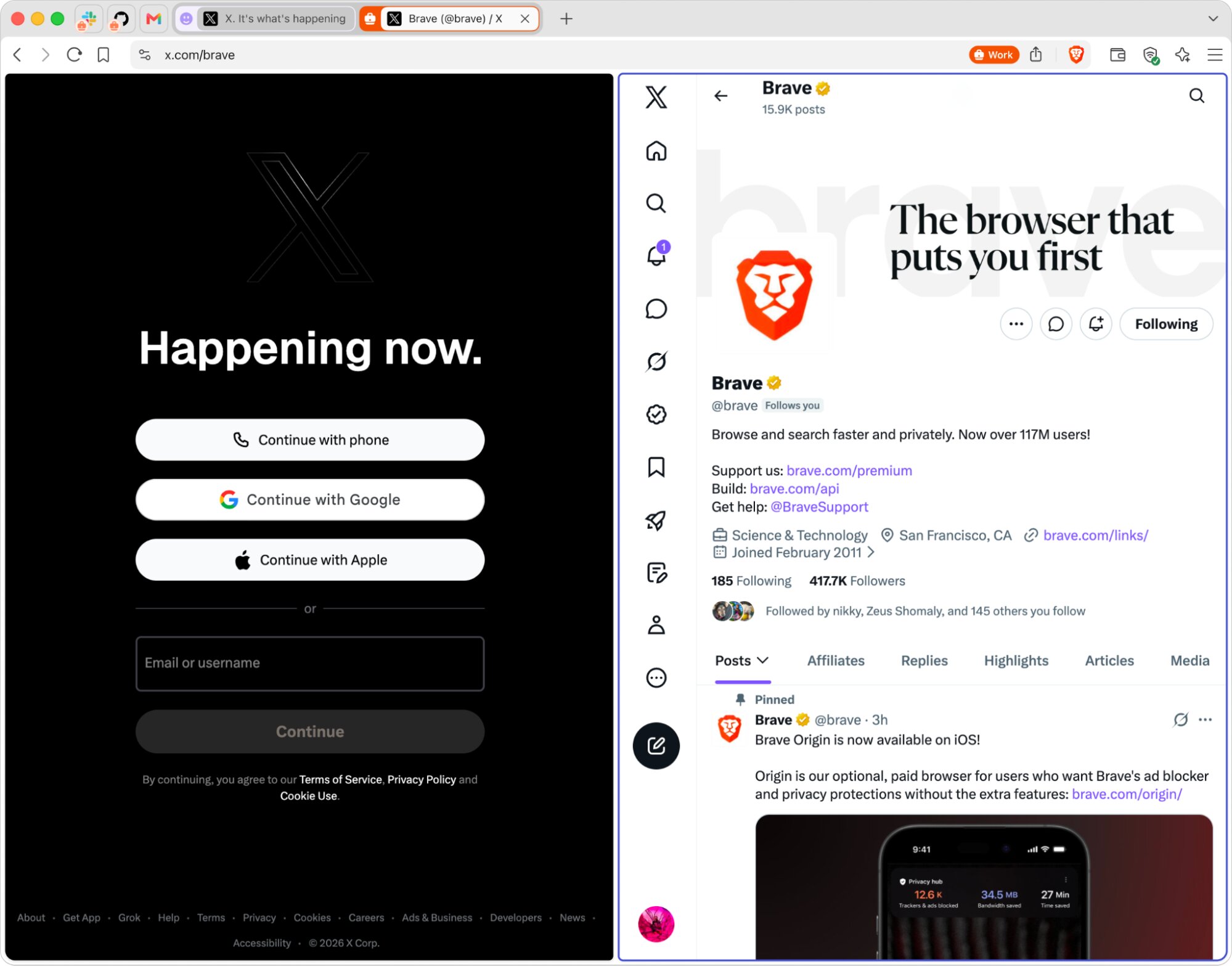
Containers are now available with today’s update of the Brave browser (v1.92), enabling convenience and ease-of-use for everyday tasks. Containers are a way for users to isolate tabs from one another so that their cookies and storage are not shared outside of the container, even when visiting the same site.
For example, a marketing manager might use containers to be logged into two different social media accounts at the same time. A developer might use containers to test an application with one tab logged in as an administrator and another as a regular user. An employee logged into their Google account might want to open YouTube in a separate container to ensure that their viewing history isn’t linked to their work account.
The original idea for Containers came about at a time when browsers gave different sites the ability to share storage with one another via third-party cookies and similar mechanisms. Since this privacy benefit is already built-in to Brave with storage partitioning (which isolates each site and its third-party requests so that trackers can’t follow you across the Web), containers are best understood as a convenience feature to present different identities to a site and as a basic building block for specific workflows.
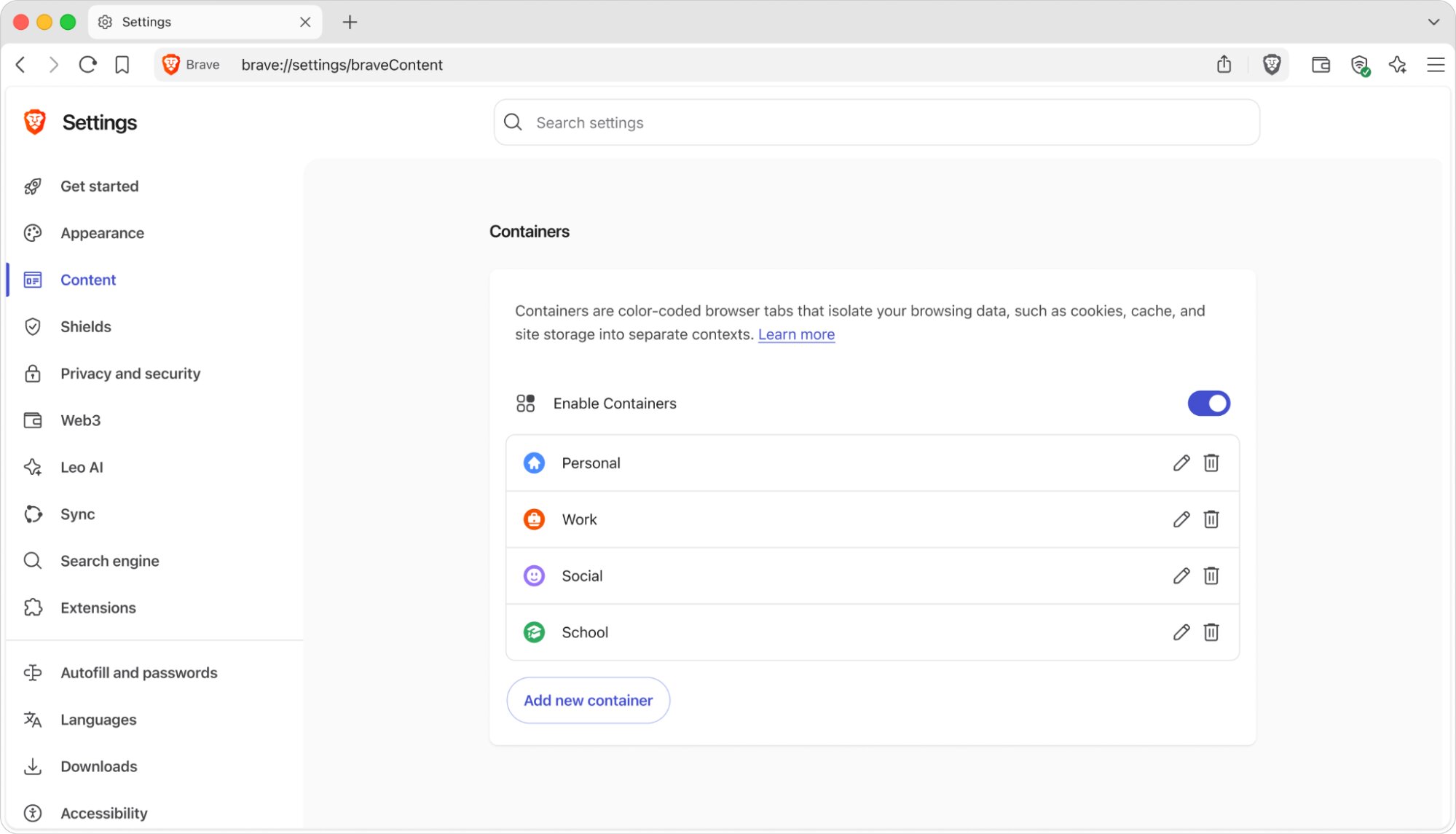
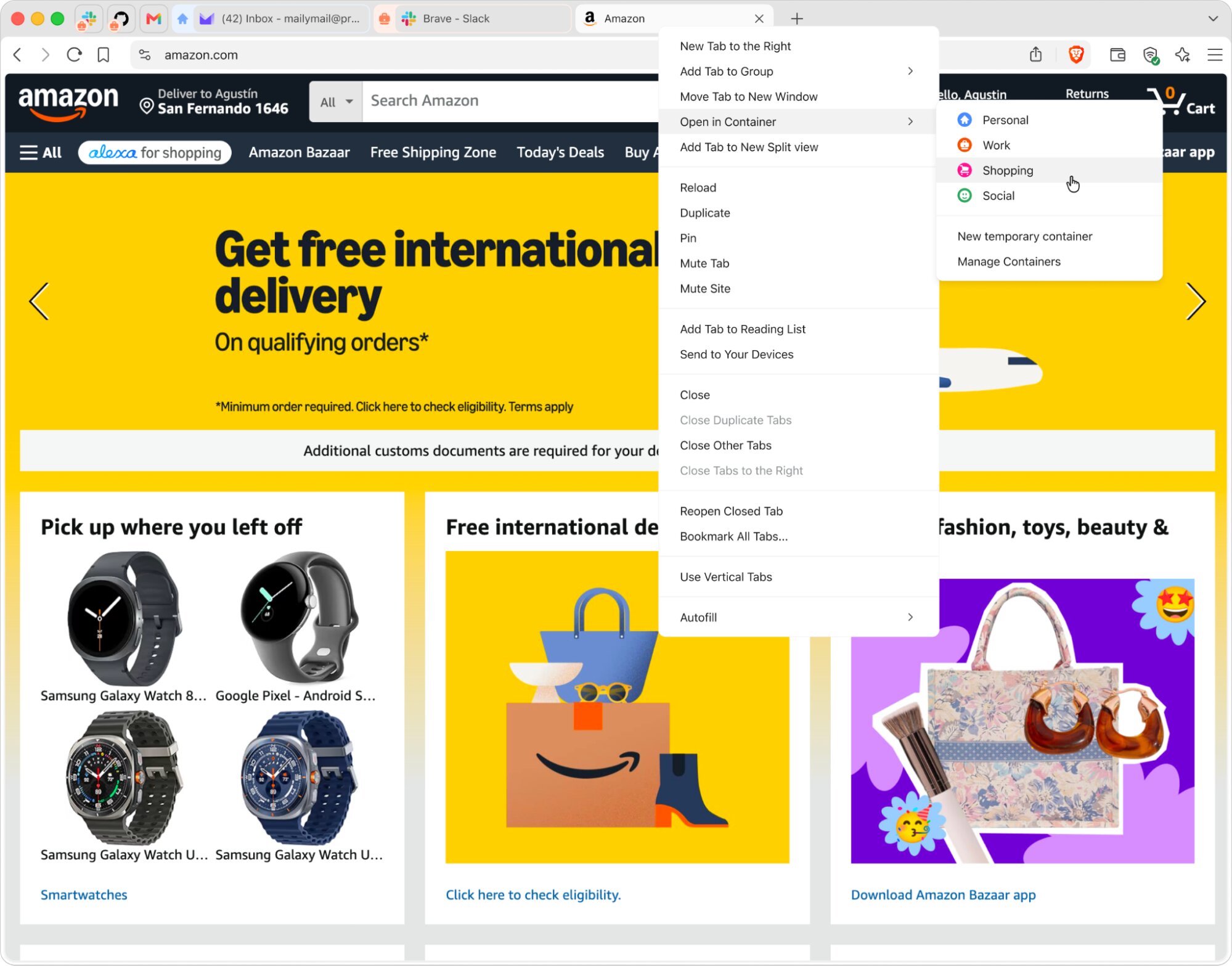
To get started, simply go to Settings (brave://settings/braveContent) and click on Enable Containers. You can also right-click a tab, select “Open in container,” and choose the category.
Containers are now built into Brave 1.92 on all desktop platforms (Windows, macOS, and Linux), no extension/add-on needed. Note that this feature is being rolled out in phases over a few days, so if you don’t see it on your platform yet, please check back soon.