How to use Brave Search with n8n (local)
This guide covers the steps to enable Brave Search via the official Brave Search community node in n8n.io, a flexible and community-driven automation platform. Please note, this covers the local version of n8n.
Sign-up and create a key for Brave Search API
Register or login to a Brave Search API account.
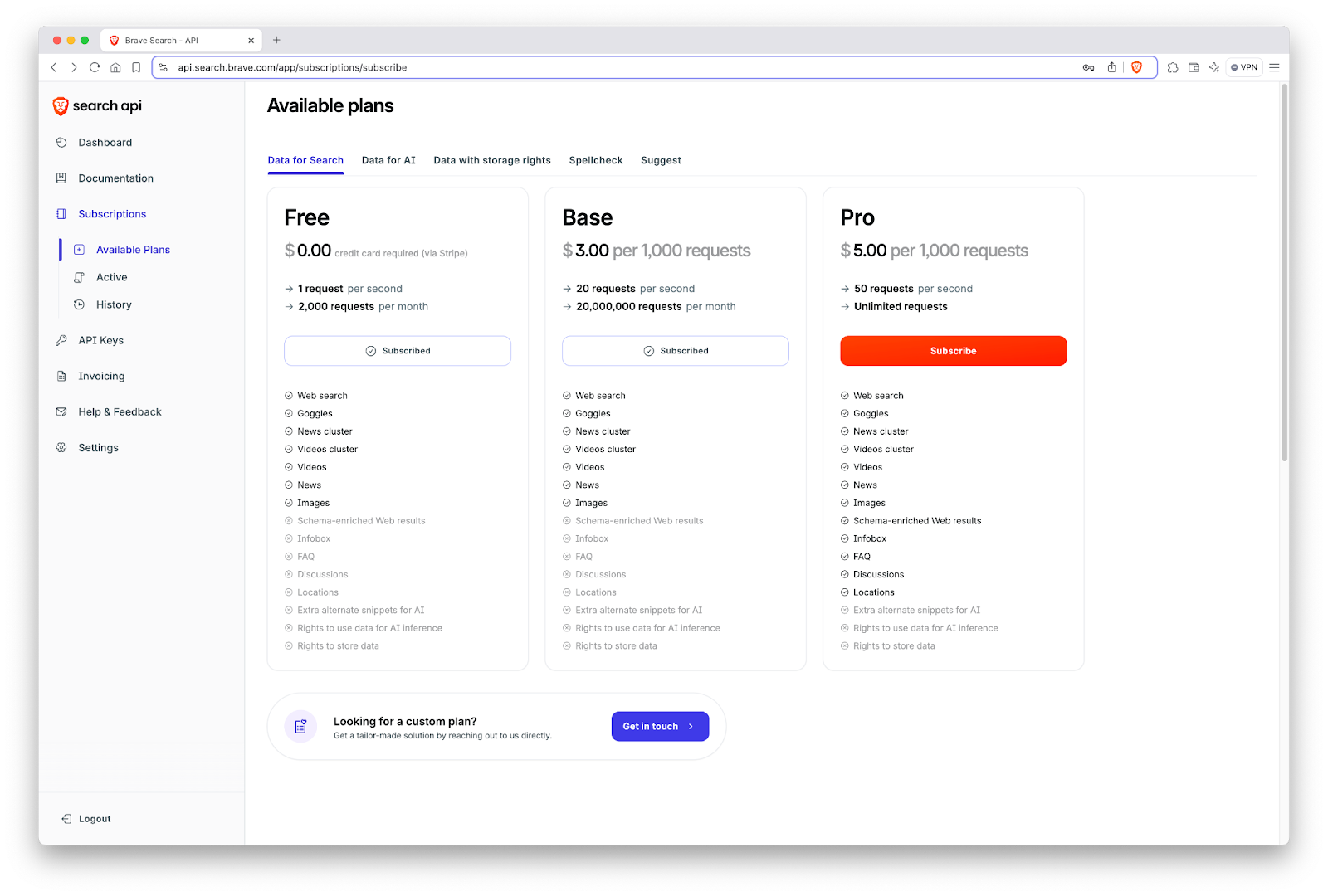
For use with n8n, you must ensure you are subscribed to one of the Data for AI plans, which are found under the Subscriptions tab in the left hand menu of the dashboard.
On the same menu, visit API keys and click Add API Key to generate a new key. A dialogue box will appear asking you to name the key and select which of your subscribed plans to use.
Note: free plans are usually more than enough for personal use (2,000 free queries)
Run n8n on your machine with Docker
There are a few ways to do this, but n8n officially supports using npx (requires node.js) or Docker. In this case, we’re going to use Docker for its convenience. Once Docker is installed, copy and paste the following contents into the terminal, and hit enter/return. This will create and launch a container running the official n8n image.
docker volume create n8n_data
docker run -it --rm --name n8n -p 5678:5678 -v n8n_data:/home/node/.n8n docker.n8n.io/n8nio/n8n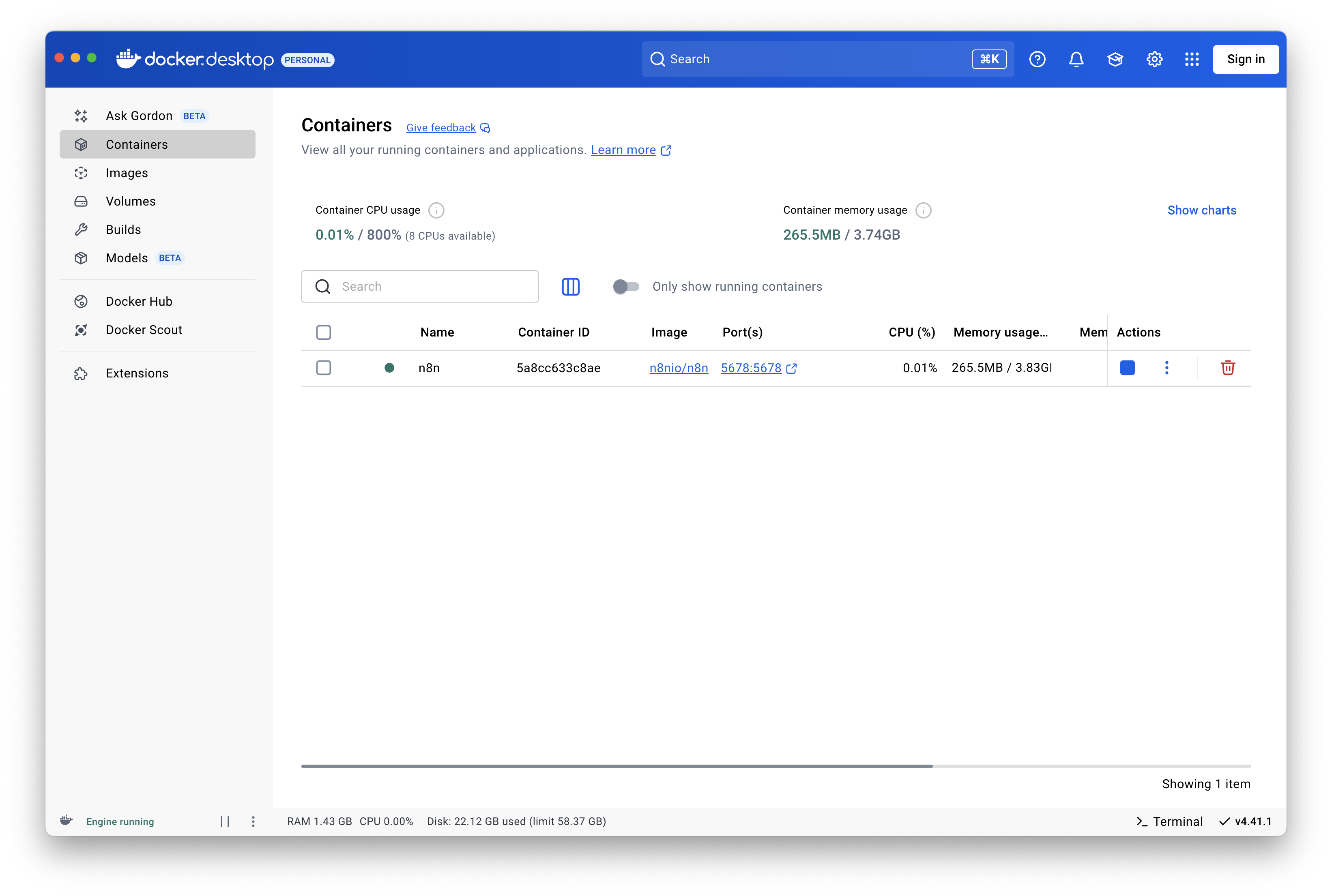
Open n8n settings in your browser
Once the image is installed and running via a container in Docker, visit http://localhost:5678 in your browser. Naturally, we suggest using Brave but any major browser will do.
Install the official n8n community node for Brave Search
After signing in (an account is required to use n8n, even locally), navigate to http://localhost:5678/settings/community-nodes and click Install. From there, enter the following for the npm package, and continue through the installation prompts.
@brave/n8n-nodes-brave-search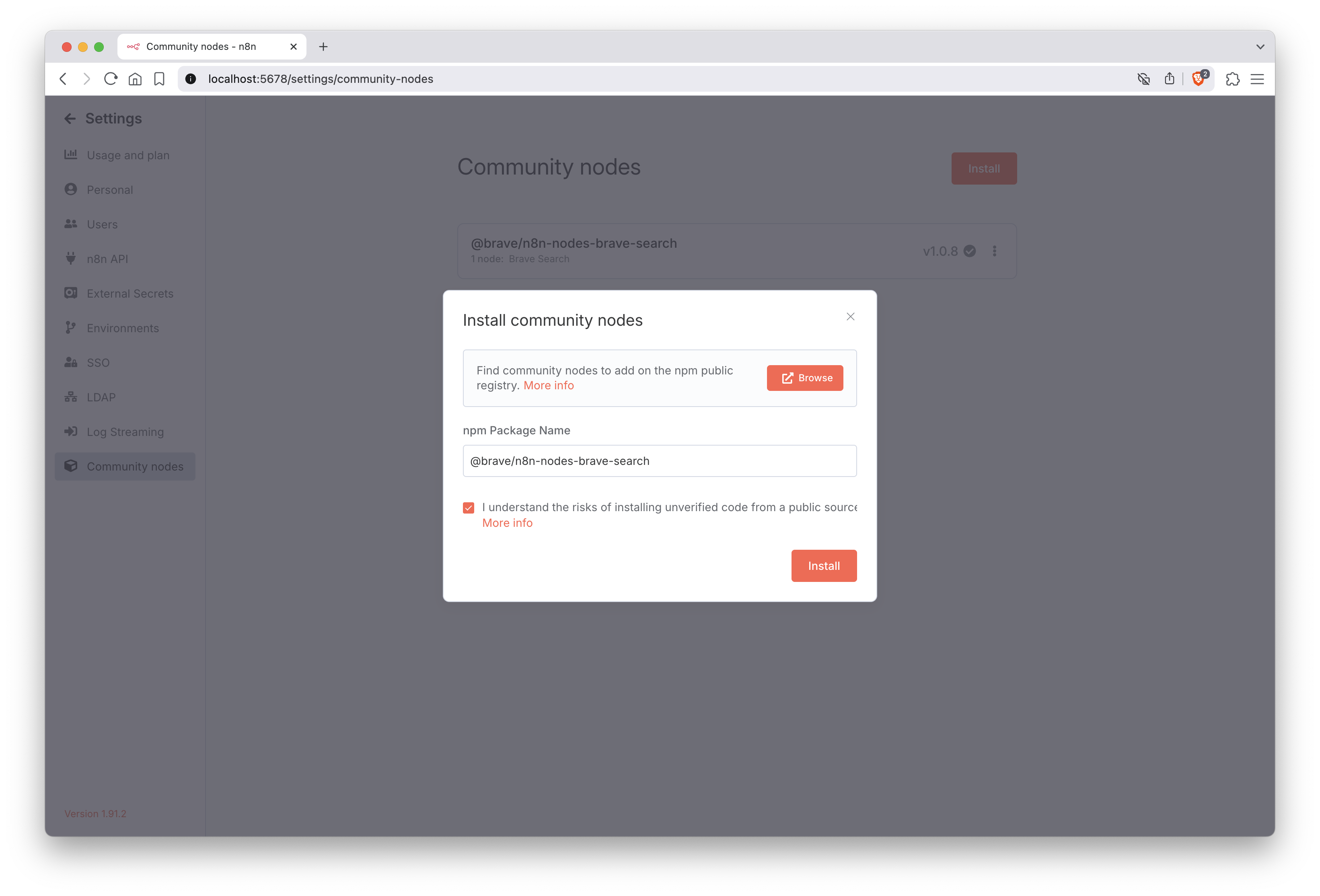
Insert your Brave Search API key (credentials)
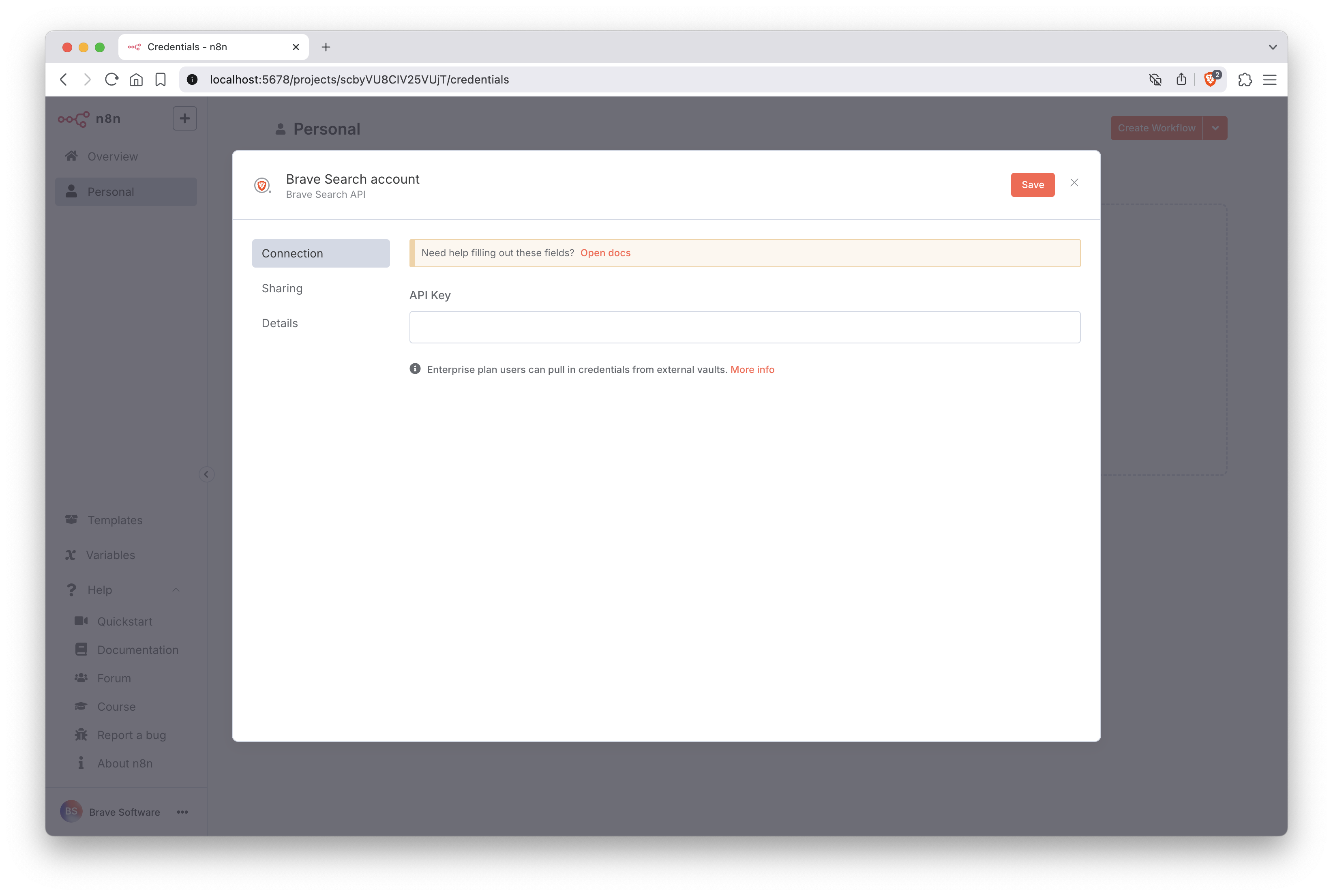
Click Personal in the left side rail of the n8n portal. Then, open the Credentials tab. Search for Brave Search, which if installed correctly will be shown among the default nodes within n8n. Finally, you’ll be prompted to enter your API key and save the credentials after which a banner will appear to let you know the API connection was successful.
Test Brave Search in a simple workflow
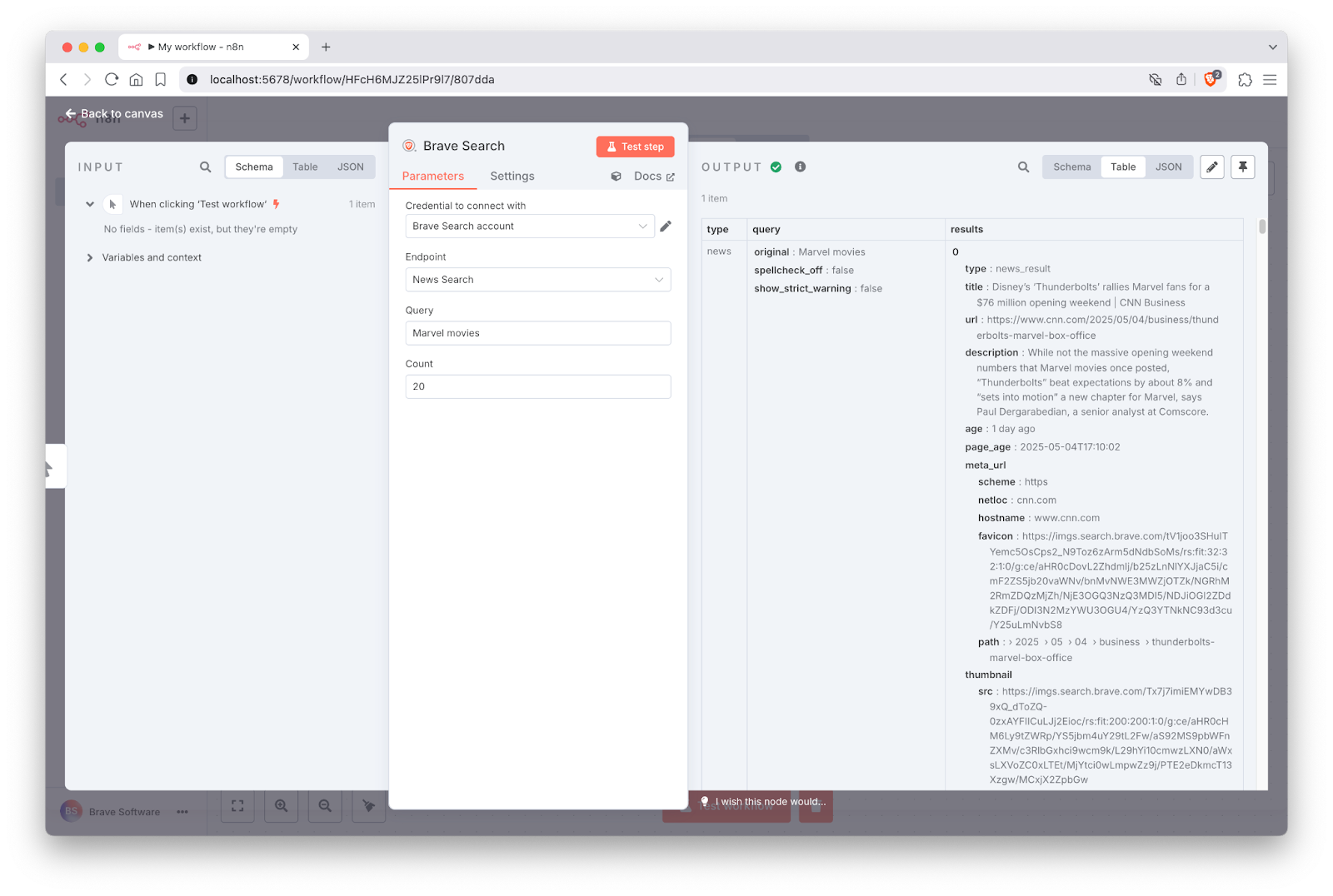
Start with a blank workflow and add a Trigger manually node. Click the “+” button near it to add a next step. For your second step, select Action in an app and search for Brave Search. In this example, we’ll look for the latest news around Marvel movies. Set the Endpoint to News Search and enter the query Marvel movies. Leave the count at 20 (default) and click Test setup. If all was configured correctly, you’ll see the output of the request on the right hand side of the UI.