Import passwords via CSV file

If you use multiple browsers, or you’re switching to Brave for good, it can save time to import passwords for your most-used apps and sites. Now, with Brave 1.84, you can.

To import passwords via CSV file:

  1. Open Brave and tap “” (main menu).
  2. Tap Settings.
  3. Tap Brave Password Manager.
  4. Tap Import passwords.
  5. Choose a CSV file containing passwords

Note that the CSV would need to have first been exported from another browser, e.g. Chrome.
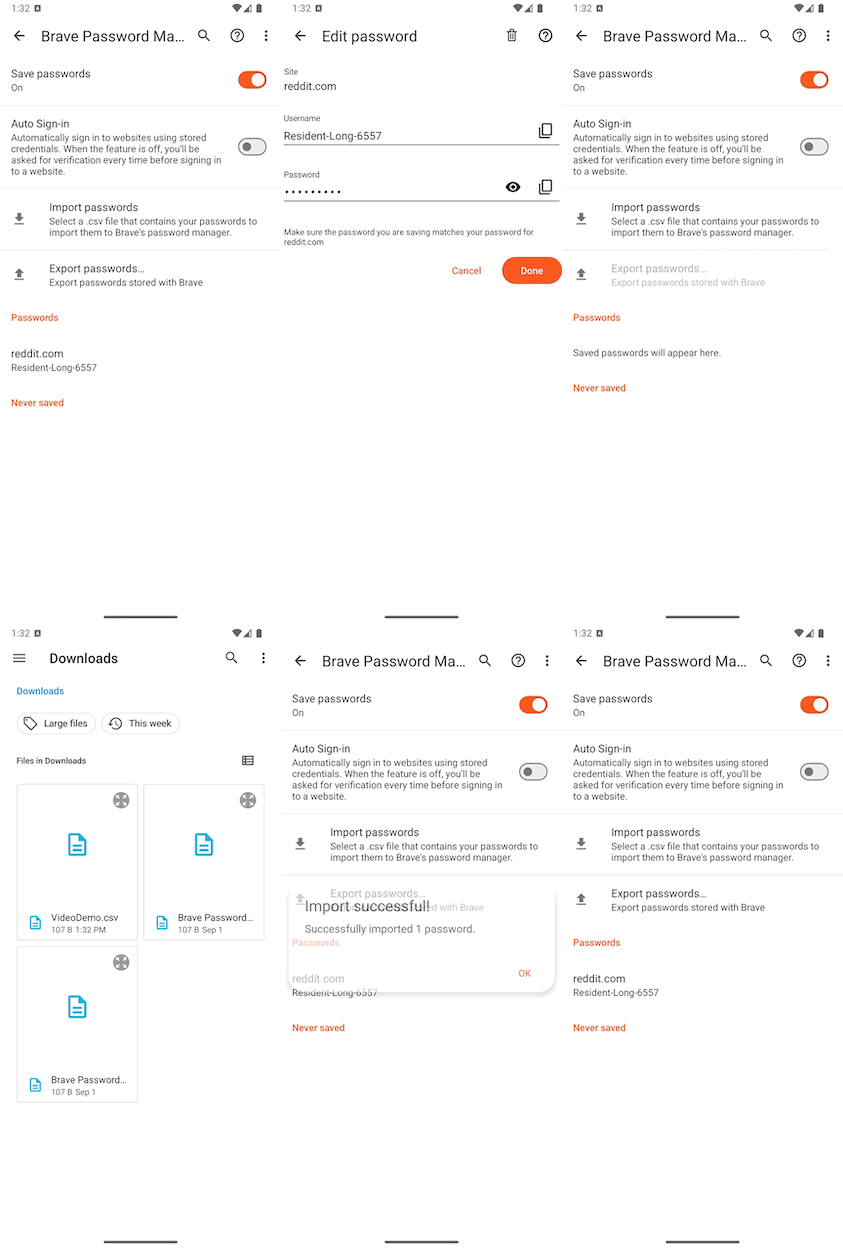
Importing passwords via CSV file Importing passwords via CSV file

Brave logo

Almost there…

Please continue the installation of Brave in the .

Google Play app .

You’re just 60 seconds away from the best privacy online

  1. Download Brave
  2. Run the installer
  3. Import settings
  1. step 1
    Download Brave

    Open the installer from Chrome's downloads (it should be in the upper right corner of this window).

  2. step 2
    Run the installer

    If you're prompted to, click “Yes” in the User Access Control dialog.

  3. step 3
    Import settings

    Wait for the installation to finish, then import your browser settings from Chrome.

If your download didn’t start automatically, click .

Need help?