
Customize your browser’s appearance
Brave for desktop just introduced several new options to customize the browser to your exact preferences: Themes, and toolbar.
For themes, you can choose from more than a dozen colors in light mode, dark mode, or to match your device preferences. You can also create your own custom color variations.
You can also add or remove buttons to the main toolbar in Brave. These include buttons for navigation (like home or sidebar), standard features (like password manager or bookmarks), custom features (like Leo AI or VPN), or tools and actions (like print, cast, or share).
Once you’ve added (or removed) buttons from the toolbar, you can easily drag to re-order them.
With thousands of possible combinations, anyone can make Brave truly their own. To access these new themes and toolbar options:
- Open the desktop browser and click the main settings menu (
 ), then click Settings.
 - Click Appearance to adjust color themes. Or, click Customize your toolbar to adjust toolbar buttons, navigation, and more.
Pro tip: From this same Appearance menu, you can also try great customization options like vertical tabs.
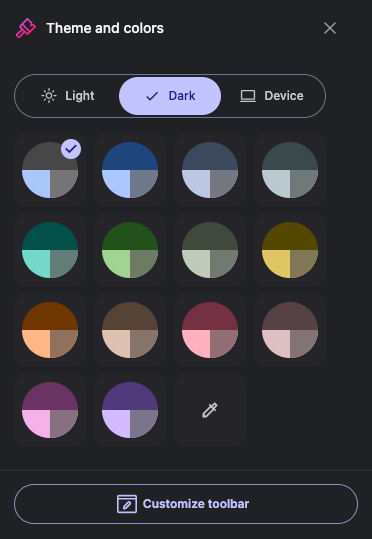 New desktop browser themes

