Customize the Android main settings menu

Brave believes in a user-first Web, and that extends to your experience of using Brave itself. You can already customize the look and feel of the Brave new tab page, address bar, and more. Now, with Brave 1.84, you can also customize the main settings menu. This allows you to move the actions you tap most often to the top of the menu for faster access.

To customize the main settings menu in Android:

  1. Open Brave and tap “” (main menu).
  2. Tap Customize menu and choose what you want to show/hide in the main menu.
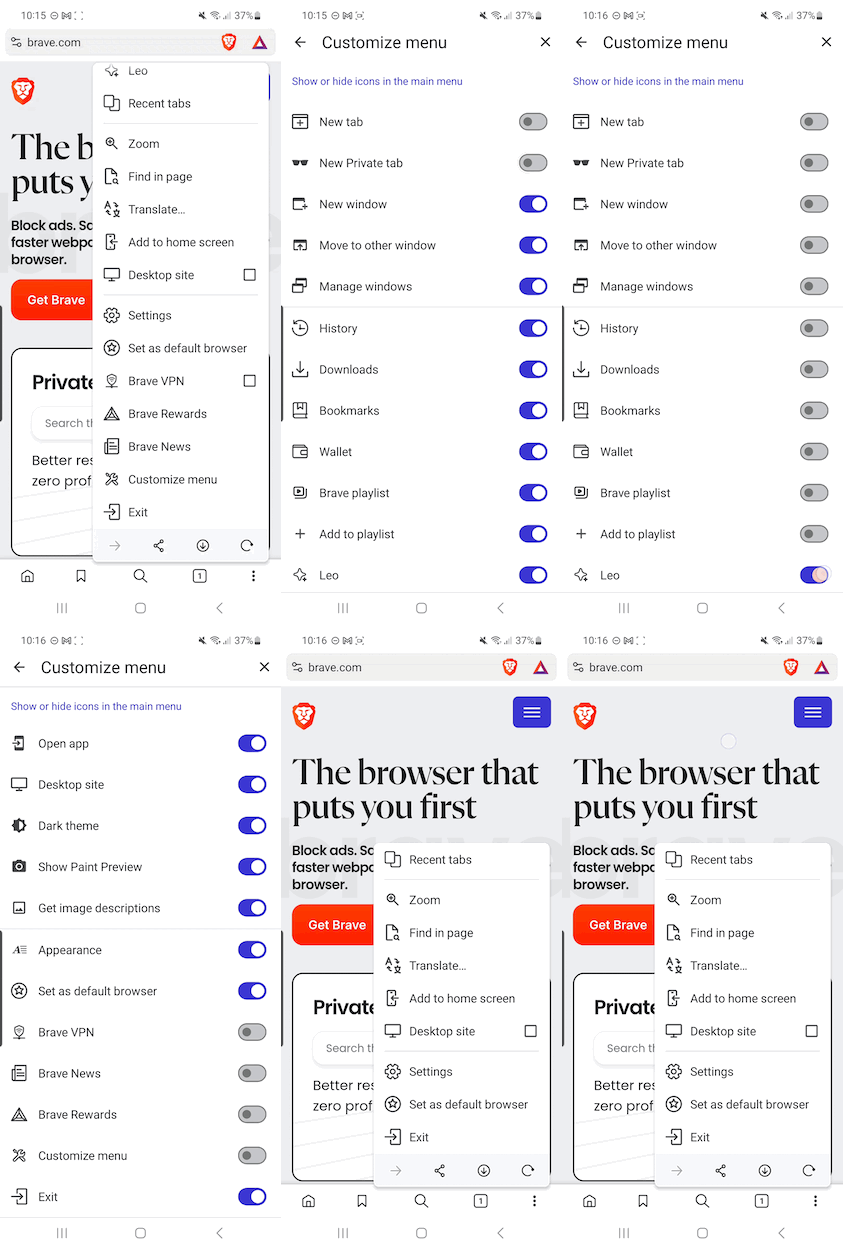
Customize the Android settings menu Customize the Android settings menu

Brave logo

Almost there…

Please continue the installation of Brave in the .

Google Play app .

You’re just 60 seconds away from the best privacy online

  1. Download Brave
  2. Run the installer
  3. Import settings
  1. step 1
    Download Brave

    Open the installer from Chrome's downloads (it should be in the upper right corner of this window).

  2. step 2
    Run the installer

    If you're prompted to, click “Yes” in the User Access Control dialog.

  3. step 3
    Import settings

    Wait for the installation to finish, then import your browser settings from Chrome.

If your download didn’t start automatically, click .

Need help?