Brave blocks… Ad retargeting

We’ve all had that feeling…like our devices are listening to us. One minute you’re searching for something, or visiting a website, the next you’re seeing an ad for it. This is called “retargeting,” and it’s actually the result of using the Internet without privacy protections.
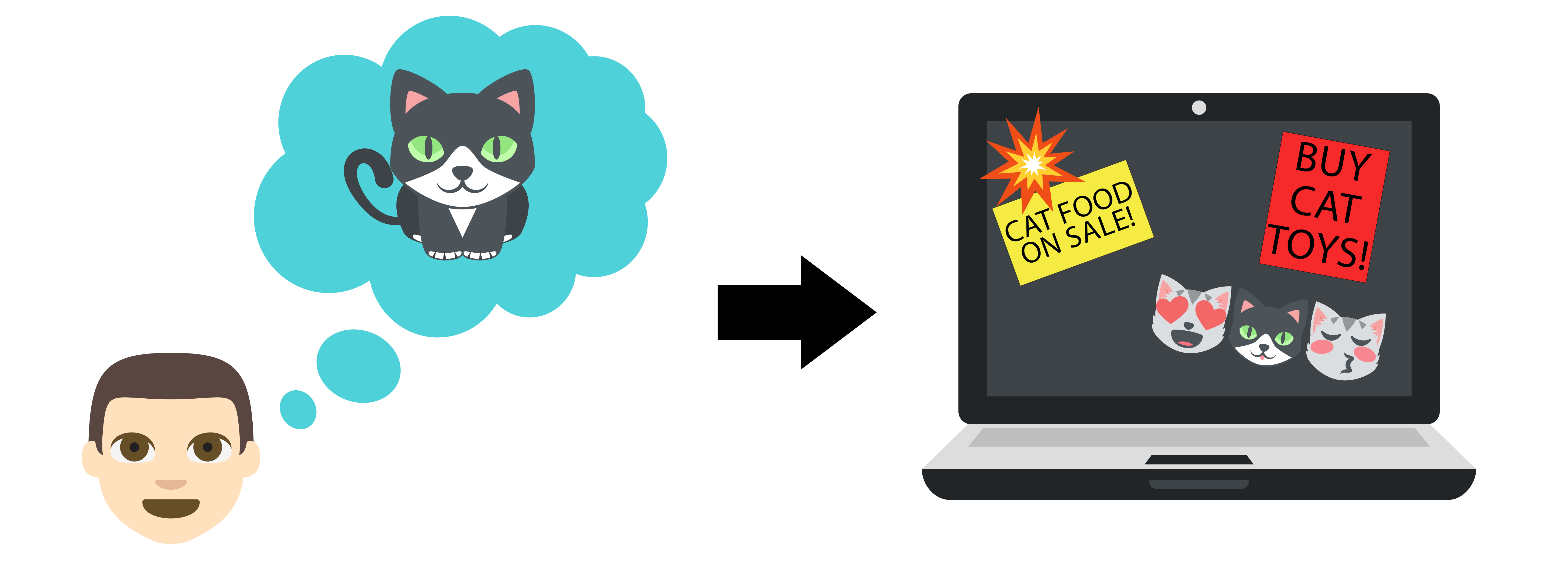
screenshot of website when not using Brave Browser

That’s where Brave comes in: to block the trackers and cookies that help make retargeting possible. And—even better—Brave blocks ads themselves, too. That means no personal data collection, and no “retargeted” ads.

Just download Brave, open the app, and browse the Web just like normal. It’ll block ads, cookies, trackers, and more—right out of the box.

Brave logo

Almost there…

Please continue the installation of Brave in the .

Please continue the installation of Brave in the .

You’re just 60 seconds away from the best privacy online

  1. Download Brave
  2. Run the installer
  3. Import settings
  1. step 1
    Download Brave

    Open the installer from Chrome's downloads (it should be in the upper right corner of this window).

  2. step 2
    Run the installer

    If you're prompted to, click “Yes” in the User Access Control dialog.

  3. step 3
    Import settings

    Wait for the installation to finish, then import your browser settings from Chrome.

If your download didn’t start automatically, click .

Need help?