
Brave Leo AI
The smart AI assistant built right in your browser. Ask questions, get answers, with unparalleled privacy.
Ready to try Leo? Just start typing in the address bar and choose “Ask Leo.” Or click the Leo AI icon in the toolbar. Ready to try Leo? Tap the Brave menu button and choose the Leo AI icon. Ready to try Leo? Tap the Brave menu button and choose the Leo AI icon. Ready to try Leo? Download the browser, then click the Leo AI icon in the toolbar. Ready to try Leo? Download the browser, then tap the Brave menu button and choose the Leo AI icon. Ready to try Leo? Download the browser, then tap the Brave menu button and choose the Leo AI icon to get started.
Chat with any tab
Ask Leo to summarize webpages, generate content, translate, analyze text, and more. Without leaving the tab.
Maintain privacy
Leo doesn’t retain or share chats, or use them for additional model training. No account or login is required. Just open and chat. Privately.
Personalize your experience
Set preferences for Leo to remember across chats. Responses become contextual and tailored to you, while maintaining privacy.
Bring your own models
Run your own AI models, whether local or remote. Get more control over your AI interactions while maintaining Brave’s commitment to privacy.
Fast, accurate insights
Leo can analyze PDFs, Google Docs & Google Sheets, and more to help you get you the info you need. Faster.
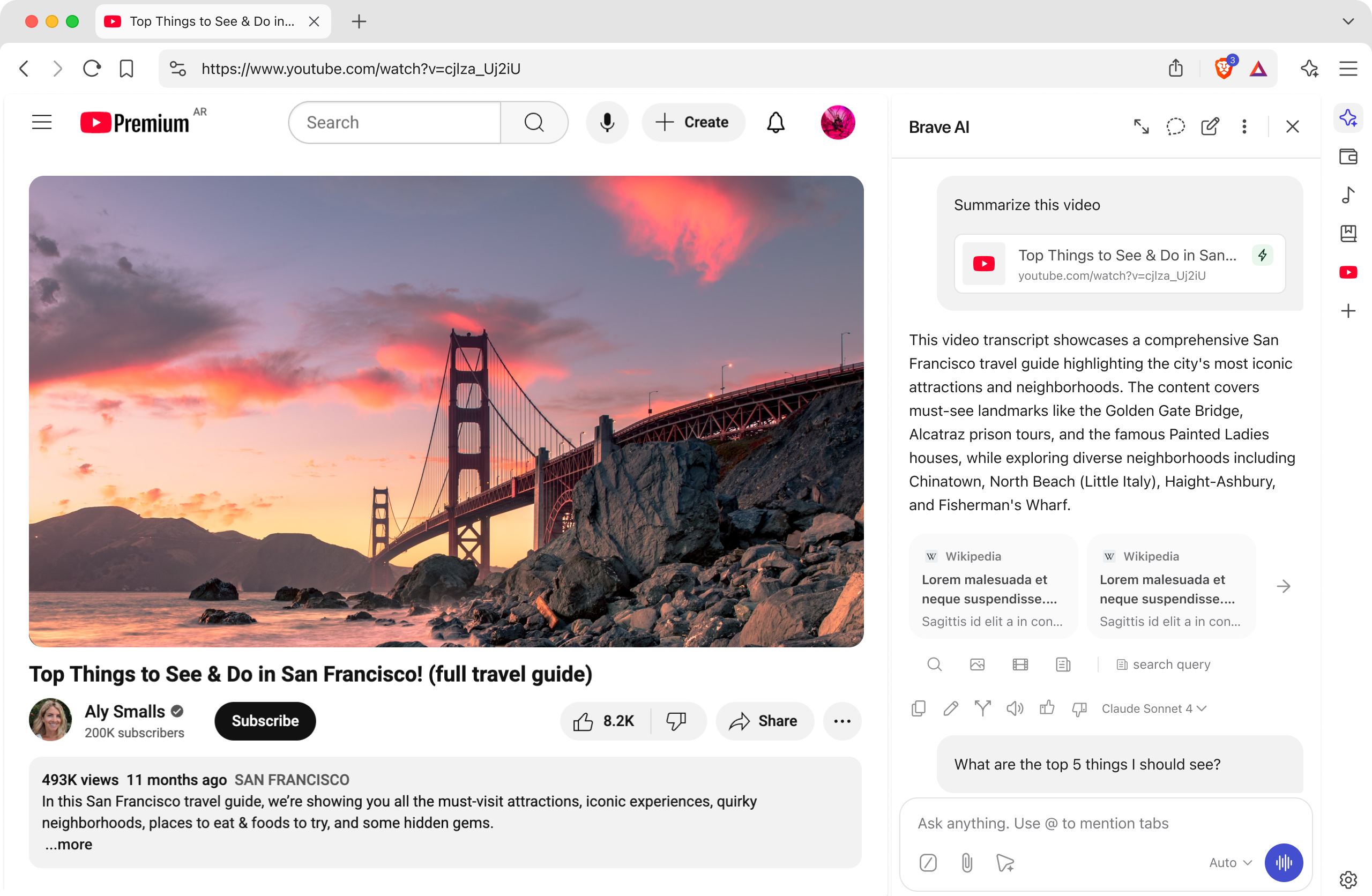
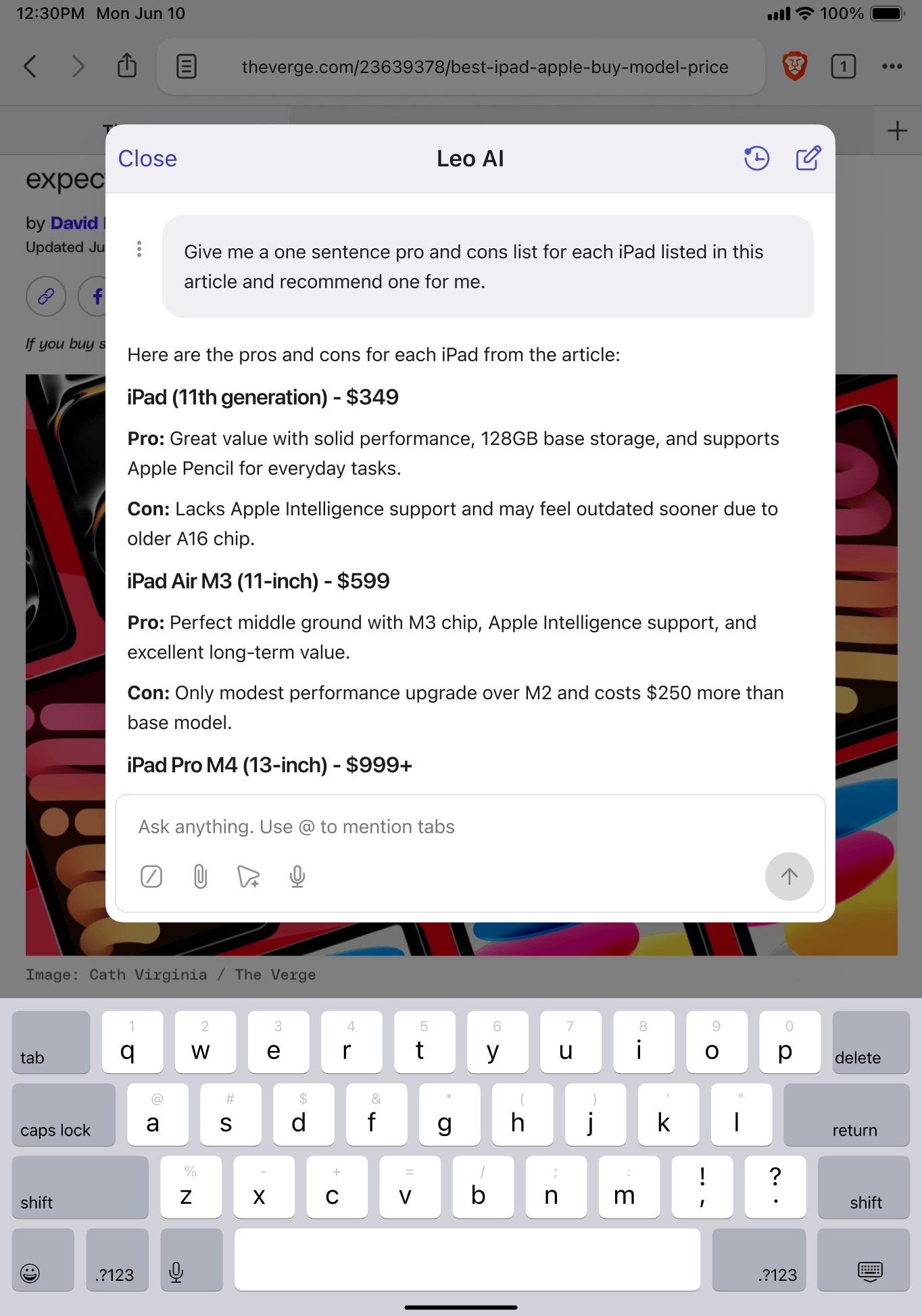
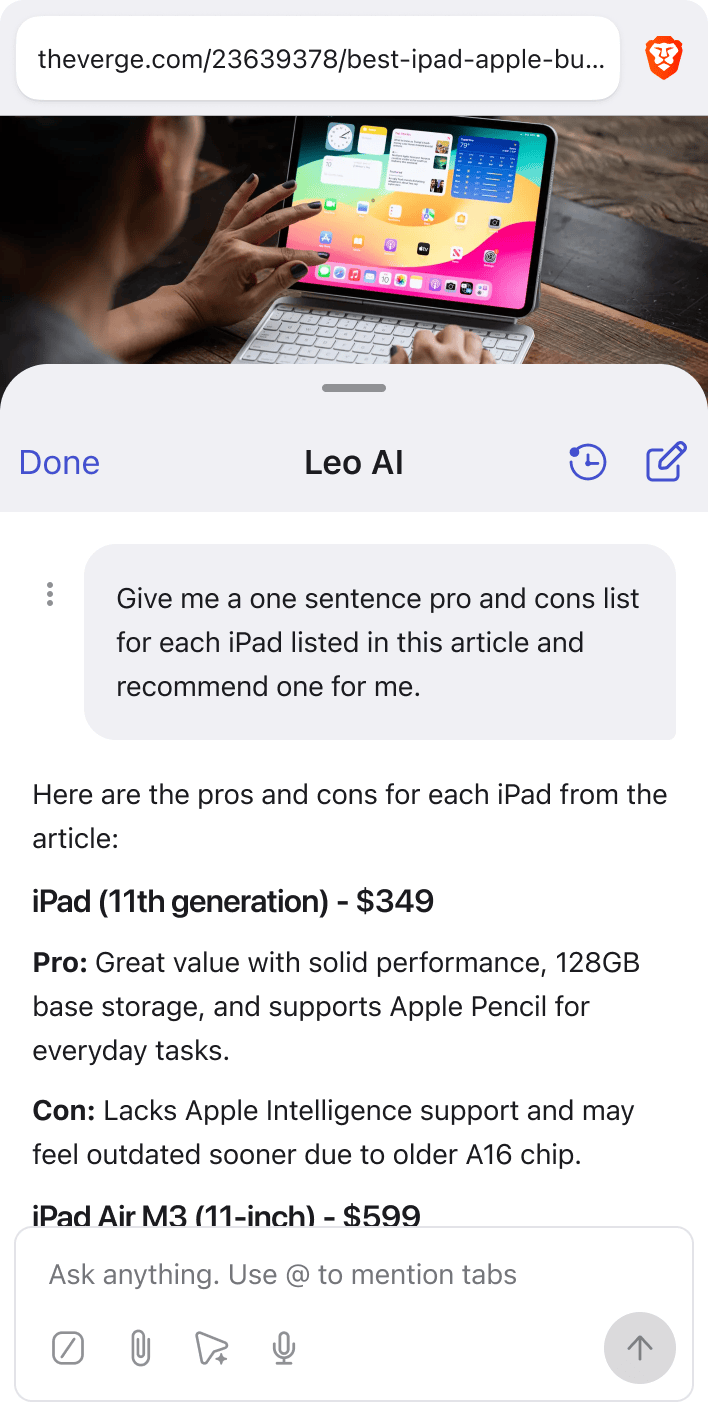
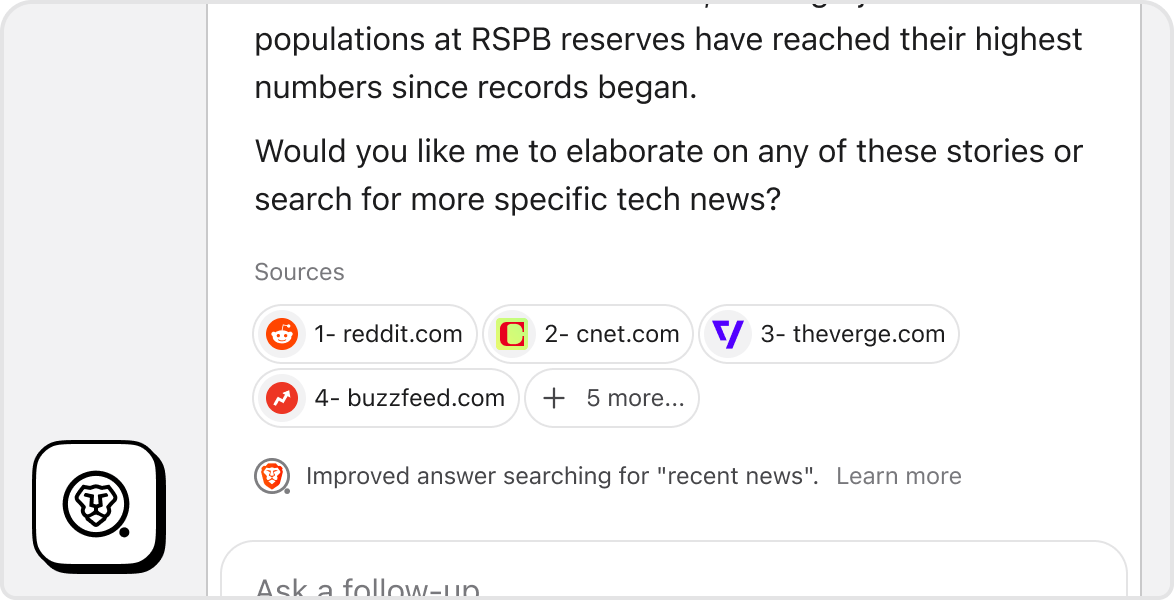
Brave Search + Leo
Leo uses Brave Search to enhance answers with richer details and up-to-date info.
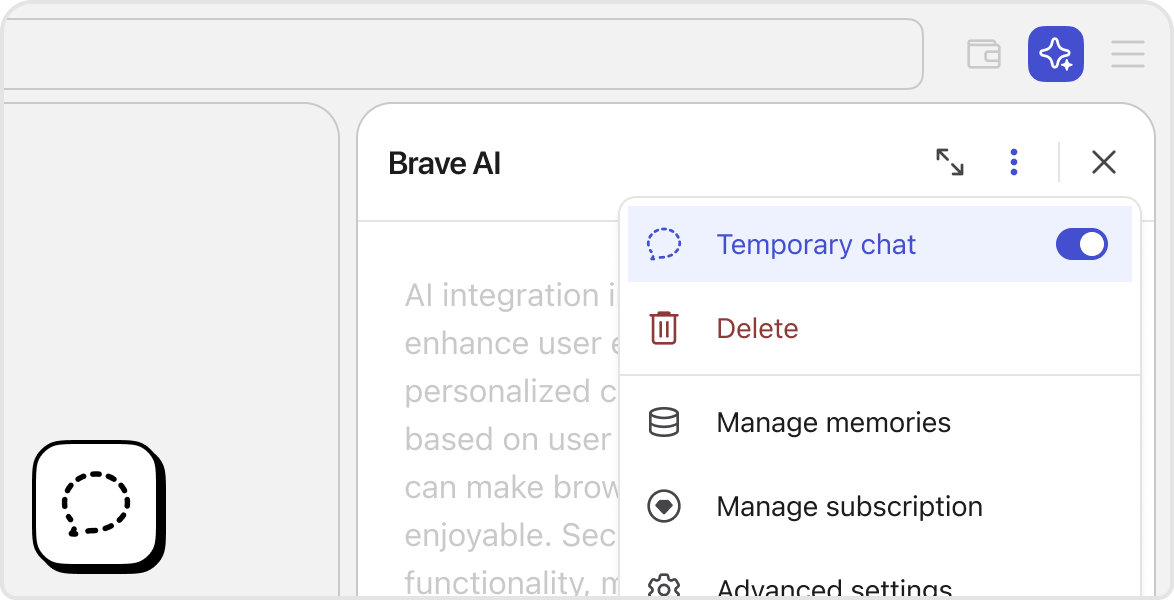
Temporary chats
Temporary chats don’t log in your history. Instantly delete chats when they’re closed.
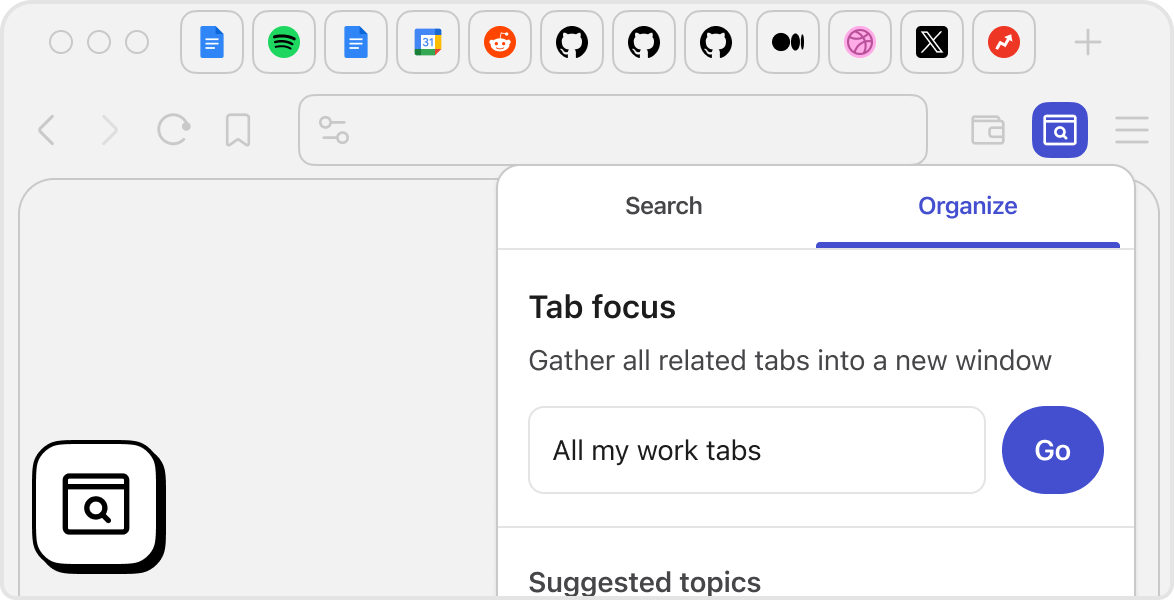
Organize tabs
Organize and find tabs for a specific topic, or even gather them in a new window.
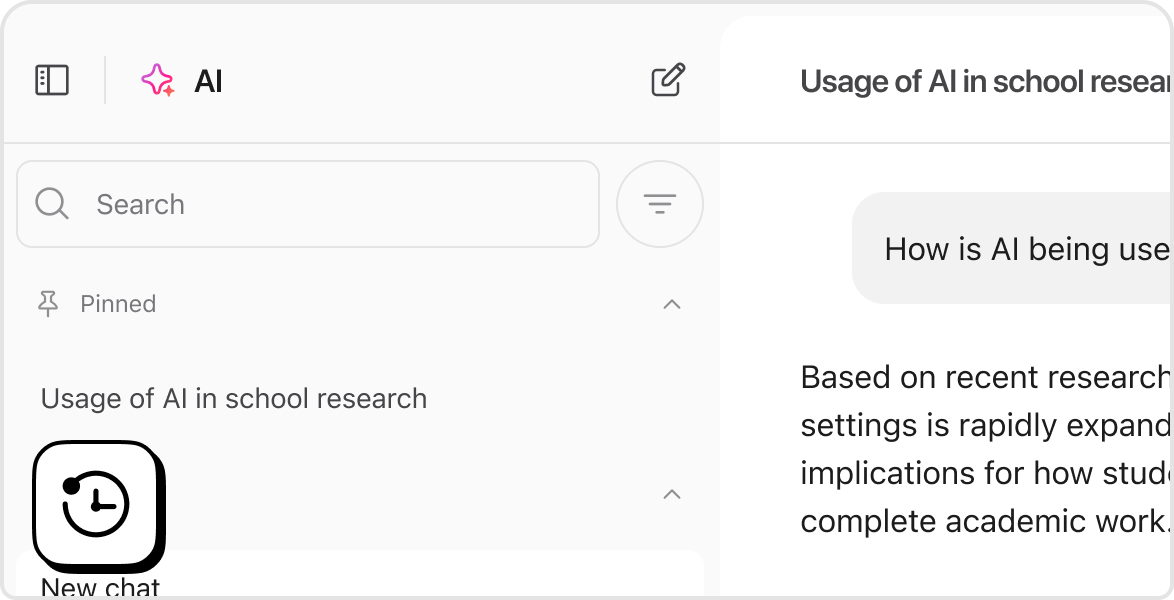
Chat history
Save and revisit conversations locally on your device, or continue them later.
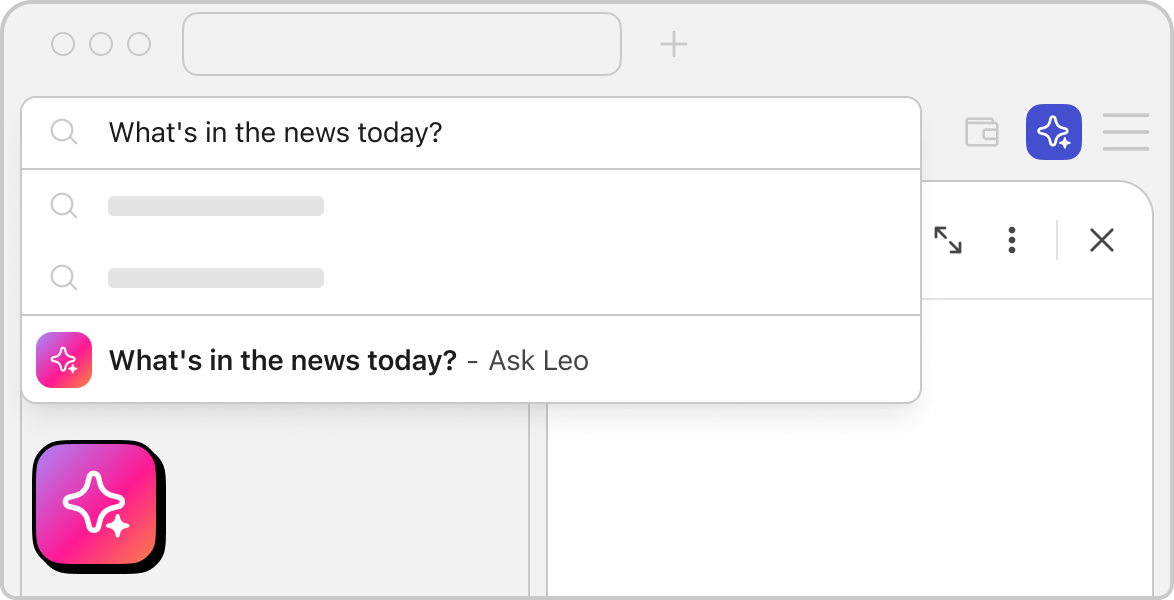
Easy to access
Just start typing in the address bar and choose “Ask Leo” to get started. Or click the Leo icon in the toolbar.
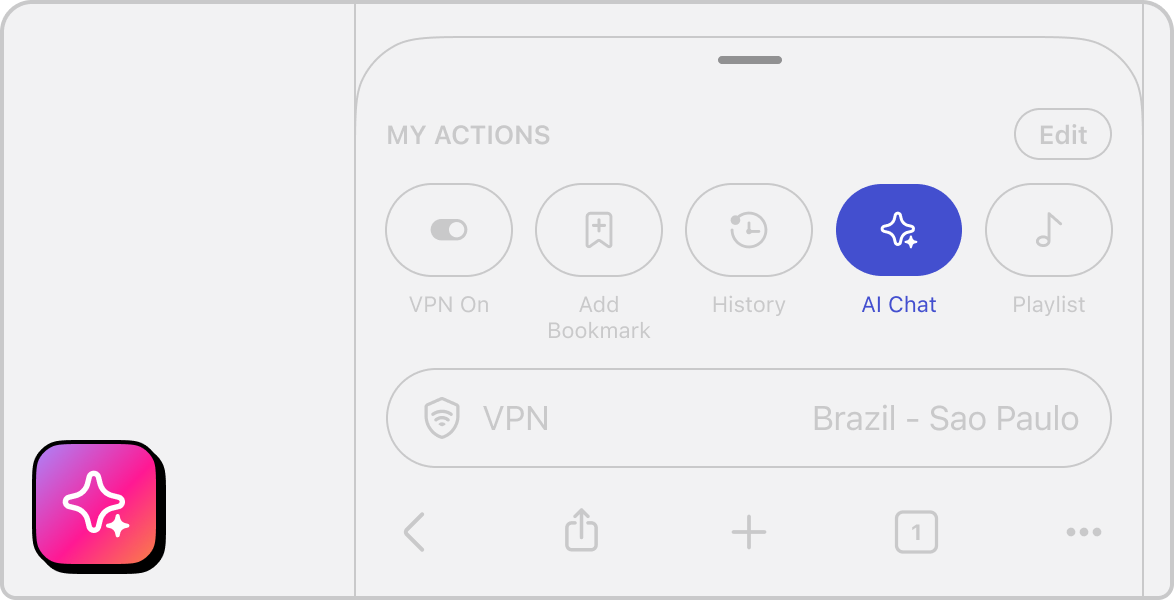
Easy to access
Tap the menu button on the browser and choose the Leo AI icon to start a new conversation.
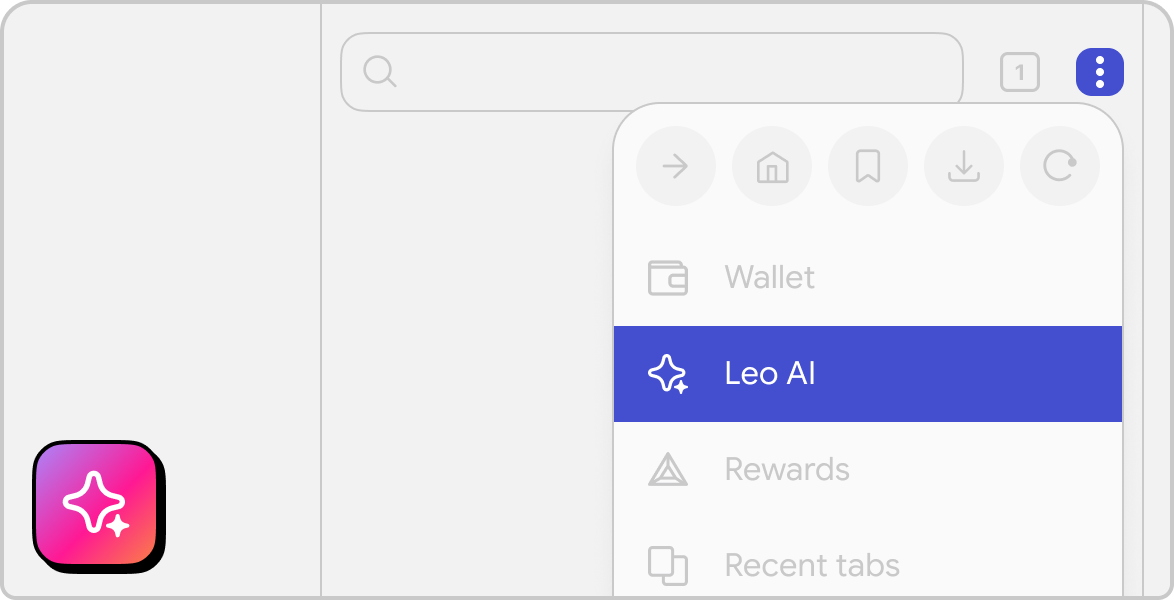
Easy to access
Tap the menu button on the browser and choose the Leo AI icon to start a new conversation.
Go Premium
Brave Leo is free to use. Or it’s available as a premium experience, with access to more models and even faster responses.
Upgrade to Leo PremiumFAQ
What can Brave Leo do?
Ask Leo to summarize a webpage, doc, or PDF. Or ask almost any question in general, and get answers, summaries, clarifications, related information, and other viewpoints. Brave Leo can also create content like articles, essays, and emails. It can translate between different languages, and even offer coding help by offering suggested and sample code for software applications and database queries.
On iOS, you can also ask Leo questions without typing on your phone via voice-to-text.
What platforms is Leo available on? Can I try Leo on mobile?
Brave Leo is currently available in the Brave browser for desktop (macOS, Windows, and Linux) and mobile (Android and iOS).
What LLMs does Leo have access to?
Both the free and Premium versions of Brave Leo offer access to the latest models from Mixtral, Anthropic’s Claude, and Meta’s Llama. Open Brave Leo to see exactly which model versions are available today.
Can I use my own models in Leo?
Yes, you can use your own models in Brave Leo, with a feature called Bring Your Own Model (BYOM). Check out our BYOM help center guide to learn more about using local or remote models, or even connecting to third-party APIs.
What data does the Brave browser send to the servers that power Leo?
With respect to the servers that power Brave Leo, your browser will share your latest prompt, the context of your current conversation, and—when the use case requires it—the necessary context from the page you’re viewing. We do not collect identifiers that can be linked to you (such as IP Address), and no personal data is retained.
Does Brave Leo have a daily limit on the number of prompts I can send?
Brave Leo may be more or less accessible depending on traffic levels and usage. You can subscribe to Brave Leo Premium to get higher usage limits.
Do I need to sign up for a Brave account to use Brave Leo?
No account or signup is required to access the free Brave Leo experience. Leo Premium subscribers will have to create a Premium account, but this is only to verify premium access. There is no Leo account per se, and the premium experience remains private. Your premium account is completely unlinkable to any usage of Leo itself.
Will you use my conversations for model training?
No. Your conversations are not persisted for model training.
Can I access a history of my chats with Leo?
Yes, regardless of which models you choose chat history can be stored locally on your device, and referred back to later. You can review past conversations through the Leo full-page view, or through the browser sidebar.
To access chat history via full-page view, navigate to brave://leo-ai, browse through your chat history in the left column, then select any conversation to view it or to continue it.
To access chat history via the browser sidebar, click the Leo icon in the sidebar, select the “…” menu, choose Conversation history, then select any conversation to view it or to continue it.
Learn more about accessing, deleting, or disabling chat history.
Can I trust Leo’s replies?
As with any AI, Leo’s responses may contain misleading information and/or factual inaccuracies. Additionally, bias and/or harmful content present in the data during training may on some occasions be reflected in the model’s outputs. We recommend double-checking any Leo responses for accuracy.
Please also provide feedback to us if you see anything concerning. To do so, click the menu next to Leo’s response and select the best option.
Does Leo hallucinate?
Yes, it does. Hallucinations are an intrinsic challenge in how LLMs work. Sometimes regenerating the answer may help. Always double-check Leo’s responses (for example, try the same query on Brave Search) before quoting them.

